
I lost about twenty minutes to a Gemini CLI config that was correct in every way except one word. The server never showed up, nothing was logged, and there was no error to search for. The problem was that I had written url where Gemini CLI wanted httpUrl, and those two keys mean different transports.
This is the walkthrough I wanted that afternoon. It covers both ways to add an MCP server to Gemini CLI, what the three transport keys actually mean, how to check the connection really worked, and the four failures that account for most of the time people lose here.
What an MCP server gives Gemini CLI
Gemini CLI ships with tools for reading files, running shell commands and searching the web. MCP is the standard way to hand it tools it did not ship with, so it can talk to your database, your issue tracker, or in my case a social media scheduler, without anyone writing a custom plugin.
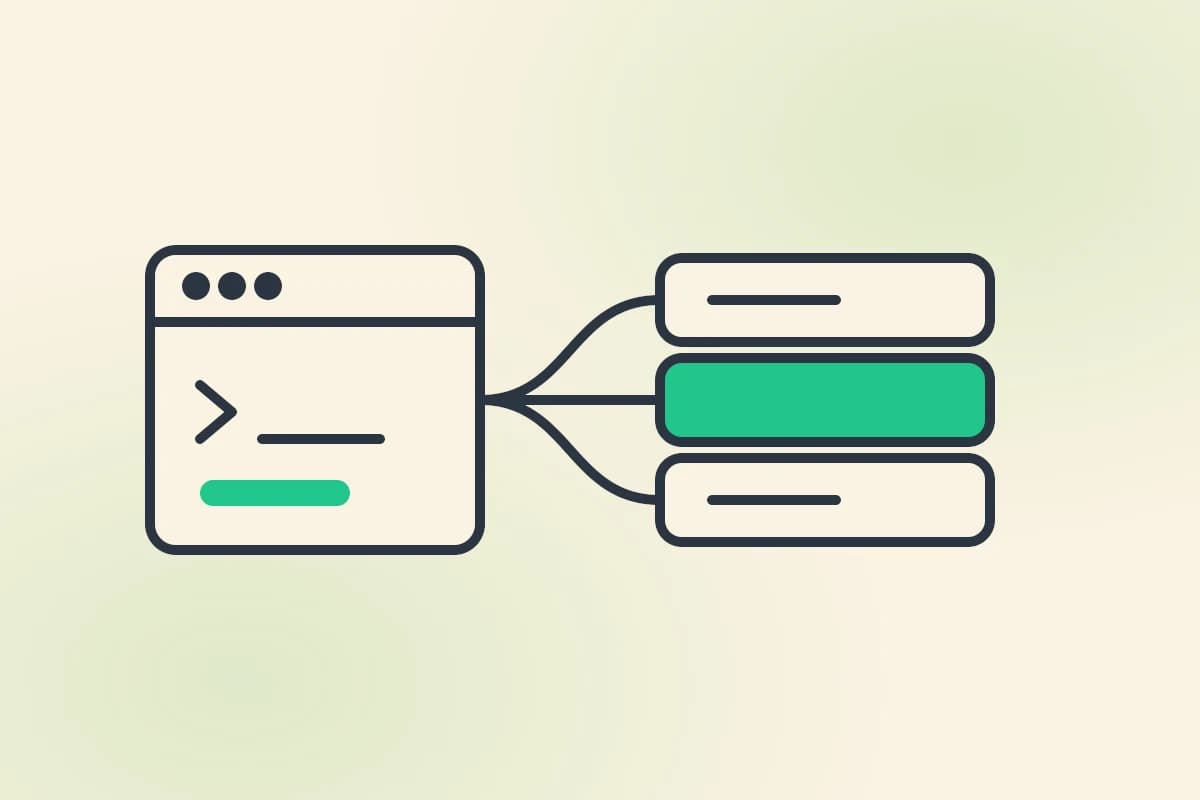
You point Gemini CLI at a server, it asks that server what tools exist, and those tools become available in the conversation. The server can run locally as a subprocess on your machine, or remotely over HTTP.
Before you start
You need Gemini CLI installed, and an MCP server to connect to. Servers come in three shapes, and which one you have decides everything else in this post:
A command Gemini CLI runs on your machine, usually npx or python. Credentials stay local, passed as environment variables.
A hosted URL ending in /mcp. Nothing to install. This is what most hosted servers use today.
An older hosted transport, usually a URL ending in /sse. Still supported, less common on new servers.
If you are connecting to someone else's hosted server and their docs say "streamable HTTP", you want the second one. Read that sentence again before you write any config, because it is the whole post.
The fast way, from the command line
Gemini CLI has a subcommand for this, and for remote servers it is the cleanest route:
gemini mcp add --transport http planpost https://mcp.planpo.st/mcp \
  --header "Authorization: Bearer pk_live_xxx"
The shape is gemini mcp add [options] <name> <commandOrUrl> [args...]. The name is yours to pick and it is what you will see in the tool list later. Transport can be stdio (the default), sse or http.
For a local server the same subcommand works, but if your command has its own flags then you end up arguing with the flag parser about which -y belongs to whom. For those I edit the config file instead, which takes the same amount of time and is easier to read six months later.
Once it is added, list what Gemini CLI thinks it has:
gemini mcp list
gemini mcp remove <name> deletes one again.
The manual way, in settings.json
Two locations, and it is worth knowing both because the difference bites people on team projects:
~/.gemini/settings.jsonapplies to you, everywhere..gemini/settings.jsoninside a project applies only in that project, and takes precedence there.
A remote server, with the transport key that matters:
{
  "mcpServers": {
    "planpost": {
      "httpUrl": "https://mcp.planpo.st/mcp",
      "headers": { "Authorization": "Bearer pk_live_xxx" },
      "timeout": 10000
    }
  }
}
A local one, running through npx:
{
  "mcpServers": {
    "planpost": {
      "command": "npx",
      "args": ["-y", "planpost-mcp"],
      "env": { "PLANPOST_API_KEY": "$PLANPOST_API_KEY" }
    }
  }
}
That $PLANPOST_API_KEY is not a typo. Gemini CLI substitutes environment variables in the env block, so the actual key lives in your shell rather than in a file you might commit. If you are putting .gemini/settings.json into a repository, use this and not the literal key.
The key that quietly breaks everything
Three transports, three different keys, and Gemini CLI will not tell you if you pick the wrong one:
Stdio. Pairs with args, cwd and env. Use for anything running on your own machine.
SSE only. If you put a streamable HTTP endpoint here, the handshake fails.
HTTP streaming. This is the one most hosted MCP servers need in 2026.
This failure is silent
Put a streamable HTTP endpoint under url and Gemini CLI tries to speak SSE to it. The connection does not complete, the server simply does not appear in your tool list, and nothing is written anywhere you would think to look. If a remote server is missing and you are sure the URL is right, check this key first.
Check that it actually connected
Start Gemini CLI and run the slash command:
/mcp
That shows every configured server, whether it connected, and which tools it discovered. A server listed with zero tools is a different problem from a server that is not listed at all, and telling those two apart saves you from debugging the wrong thing.
Authentication
For most servers a static token in headers is all you need, which is the first example above.
Some servers use OAuth instead. Gemini CLI handles it: when a server answers with a 401 it discovers the OAuth endpoints, opens your browser, and stores the tokens in ~/.gemini/mcp-oauth-tokens.json. The browser flow needs http://localhost:7777/oauth/callback reachable, which is worth knowing if you are on a locked-down machine. You can manage this yourself with:
/mcp auth
Narrowing what the agent can touch
Three options I would not skip, especially on a server that can write things:
includeToolsis an allowlist. Only the tools you name are exposed.excludeToolsis a blocklist, and it wins if a tool appears in both.trust: truebypasses the confirmation prompt before every tool call.
That last one deserves a plain description rather than a feature description: it turns off the step where you approve what the agent is about to do. On a read-only server that is reasonable. On anything that can publish, spend or delete, leave it off and accept the extra keypress.
Also worth setting: timeout is in milliseconds and defaults to 600000, which is ten minutes. A server that is quietly failing will look like a hang for ten minutes before it gives up. I set 10000 on remote servers so a dead endpoint tells me it is dead.
When it does not work
Four failures cover nearly everything:
If the server is local, run its command in a terminal by hand. A local MCP server that crashes on startup fails exactly like one that is misconfigured, and thirty seconds in a terminal tells you which it is.
A worked example
The server I use daily is our own, so treat this as the example I know best rather than a neutral recommendation.
Planpost's MCP server exposes 47 tools covering drafting, scheduling and publishing to seven networks, plus the revenue side, so the agent can ask what a post earned rather than only that it published. Hosted setup is the httpUrl block above. Local setup is the npx block. Both need an API key from your account settings.
The part I would flag honestly: anything an agent schedules goes into an approval queue by default, so a prompt cannot publish straight to your audience without you seeing it first. That is a deliberate limit rather than a missing feature, and you can turn it off if you would rather.
The full per-client configs, including Claude Code, Cursor and Codex, are in the agent setup docs, and there is more on what the tools actually do on the MCP server page.
Where to go next
Connecting the server is the boring half. The interesting half is what you ask for once the tools are there, and that turns out to be a different skill from writing prompts for a chat window. I wrote about the shape of that work in how AI agents are changing social media management, and there is a concrete version for one client in scheduling social media from Claude.
If you get stuck on a config that looks right and does nothing, check the transport key. It is almost always the transport key.